Arc Timeline 3.17.1 is taking up 100.45 GB on my iPhone 17 Pro Max running iOS 26 Beta 4. Is there a way to reduce this without losing my historic location data?
Hi @bigoandf!
So what you describe there is … I don’t know how that could happen. A normal install, even with 6+ years of data, would be more around 6GB. So to get to 100GB… I have no idea how that could happen, nor any idea what that data would be!
As to how to fix it… actually, first we need to determine whether that’s actual disk space on the phone itself, or part of it is on iCloud Drive?
Could you post a screenshot of the Settings → General → iPhone Storage view? That’s the view that shows disk space use on the phone itself.
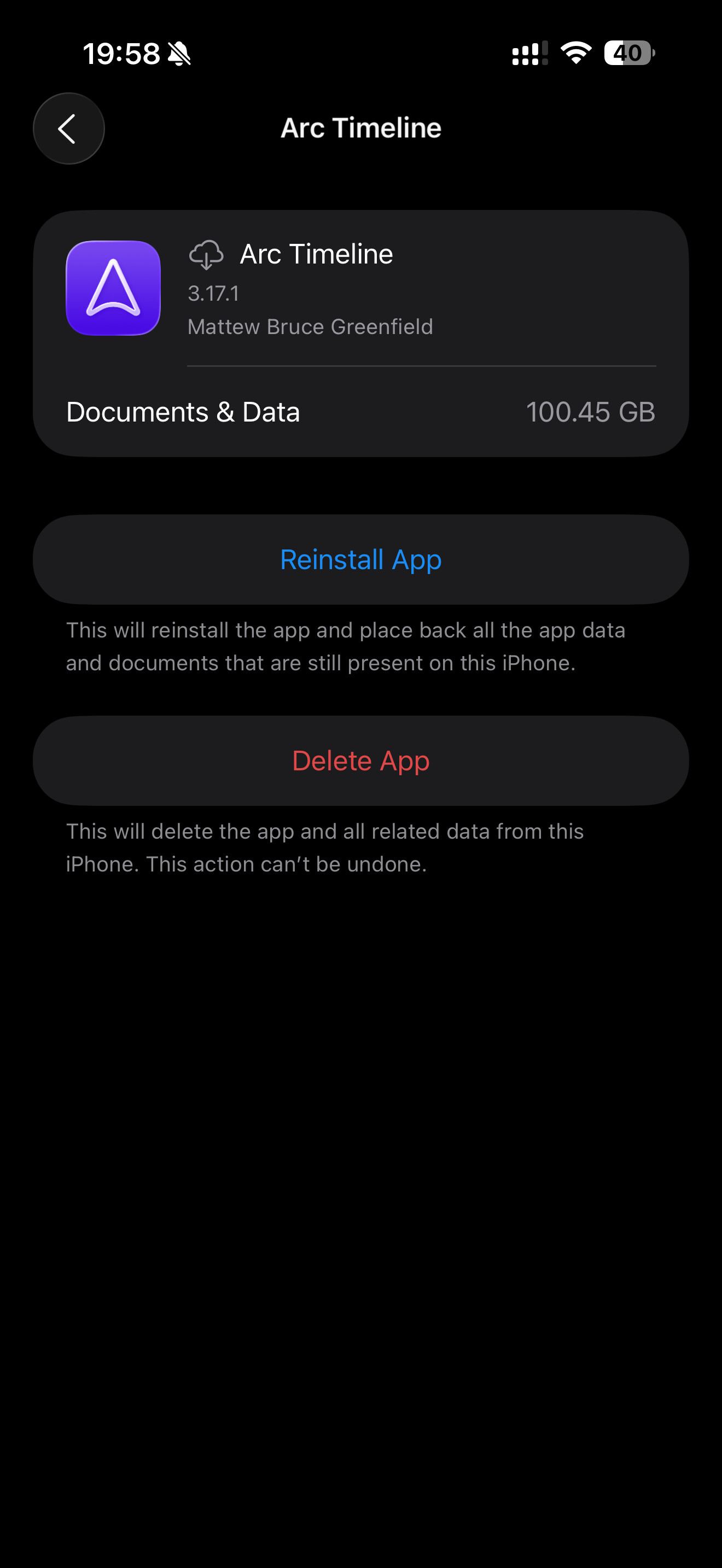
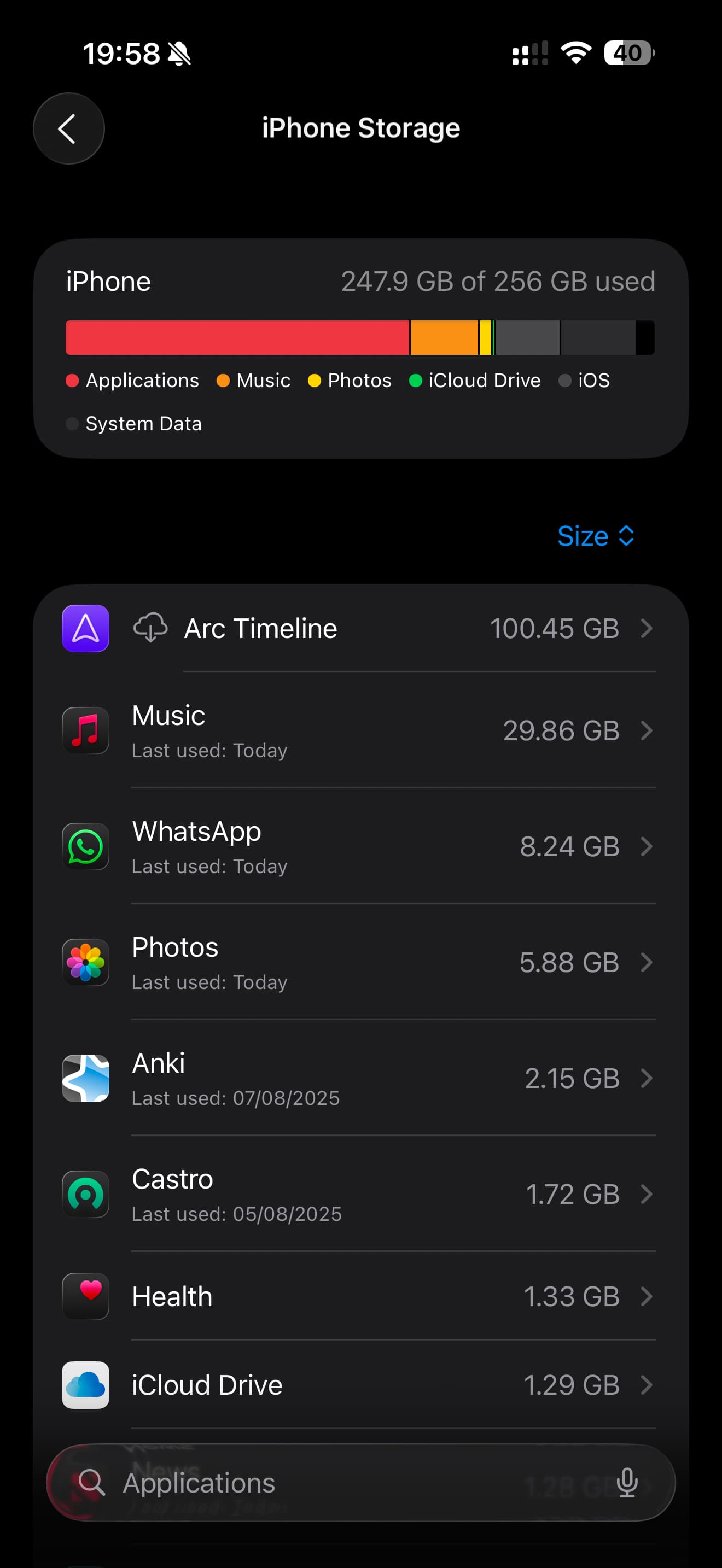
That’s crazy!
Mine shows at 6 GB, for a database going back almost 10 years…
Do you want to retain the data? Like, you just want to clear out the excess, but still keep using Arc and having all your timeline data?
If so, I’d say reinstall it, get it to complete a full backup, then delete it fully so that it removes all of its data from the phone. Then reinstall it and restore from backup. If you want to go that route, I can help you through the steps if needed.
If you just want it all gone, then… I’m not sure I remember the steps for that. Maybe you have to have the app installed, then you long press to delete it from the iOS Home Screen, and select something like “Delete the app and all data”. Which you’d need to do anyway even if you were wanting to do a backup and restore.
But yeah, I genuinely have no idea what that 100 GB is! That’s… insane. Never seen anything like it. Wow.
Do you know of an easy way (eg on my Mac) to try and interrogate where the storage is being used? (I’m wondering if there is some problem or corruption or one big file) so we can try and debug?
You could try connecting the phone to a Mac and exploring it in Finder. I’m not sure what level of detail it’ll show you there though. I suspect it’ll only be things that the app has specifically marked as accessible in that way. And I don’t think Arc does mark anything like that.
Yeah, when I browse my own phone in Finder, Arc Timeline is showing … nothing. And actually Arc’s data isn’t even stored in the app bundle, it’s stored in an “app group”. Because there’s multiple apps in the Arc Family, they share their data in a single “app group” container.
On your phone it’ll be showing up as just “Arc Timeline” in the list because presumably you’ve only got one of the apps installed. But on my phone, because I’ve got several of them installed, it shows up as … “Matthew Bruce Greenfield”. Well that’s rather awkward naming! Why on earth would Apple go with naming the app group by my Apple Developer account name?! Ugh.
But anyway, yeah, you’d need to be able to see inside that app group container, rather than the app’s container (which has barely anything at all in it, or at least should have almost nothing in it). And that app group container isn’t showing up at all in Finder for my phone.
There used to be third party apps that could introspect a bit deeper than that. Maybe there’s some hope of one of those being able to poke about a bit further. Though I’m not sure what any of those third party apps are. I haven’t looked for them in … half a decade or more! No idea what’s out there now…
My main priority is to avoid destruction of my timeline backup.
To that end and in connection with the above, I understand there is a distinction between what Arc stores in iCloud and what it stores locally on the device.
My Arc iCloud storage is only around 4 GB. And I think I’m correct in thinking that this is where my timeline history will be stored?
So therefore the question is how to possibly reset any process that is trying to take up the extraordinary volume while preserving my history.
If the above is correct, then a sensible thing to try might be to backup my Arc iCloud data, delete the app (including documents and data) and reinstall? (It is already “offloaded”)
The data in iCloud Drive is a backup of Arc’s database. So as long as that backup has fully completed recently, you can delete Arc and reinstall and then restore from that backup safely.
Though it’s potentially a long process. The restore from backup can take quite a few hours, and potentially days, if anything goes weird. It’s a lot of data, so it’s a big workload for an iPhone app!
To check when the last backup fully completed, go into Arc’s Settings tab → Backup, Import & Export, then look at the iCloud Drive backups section. At the bottom of that section it should say something like “Last backup completed 5 hours ago” (that’s what mine says at the moment).
Don’t touch that toggle button for that setting by the way! If you toggle it off, it tries to reset the entire database’s backups state (which also takes a while), then when you toggle it back on it’ll have to do an entire new backup from scratch. Which can take again many hours, and potentially days (depending on how kind iOS is being in allowing the app to get its things done). If it’s already toggled on, leave it there.
If it says the last backup completed too long ago (like more than a day or two ago), then you can help it along to catch up. The way to do that is to plug the phone in to power and leave Arc in the foreground, with screen lock disabled in iOS Settings (Display & Brightness → Auto-Lock, set to Never).
If the backups are too far behind, then Arc will run them when the app is in the foreground, instead of waiting for iOS to run them during a scheduled background task. And it’ll keep running them until they complete, as long as the app is still alive and in the foreground.
If you’ve got a recent enough backup completed, then you’re good to go with the deleting Arc and reinstalling, then restoring from backup! Once you get to that point, let me know, and I can help with any potential weirdness that might happen during restore.
Thanks - it’s currently offloaded - so do you recommend I download it before then deleting, or do you think I’d be okay with deleting now?
You want to have Arc’s backup settings view saying “Last backup completed X hours ago” with X being ideally less than ~6 hours (so that you’re not losing much recent data).
Then that’ll mean that the Backups folder on iCloud Drive (iCloud Drive → Arc App → Backups) will contain all of your data.
Then you can delete Arc Timeline app from the phone, and reinstall it. Which will then start the process of restoring from backup.
After reinstalling Arc, to make that restore go smoother and faster, it’s a good idea to go into the Files app on your phone, browse to the Arc App folder on iCloud Drive, long press on the “Previous Backups” folder and select “Download now” or “Keep downloaded”. That’ll force iOS to sync all of those files to your phone from iCloud Drive, so that Arc doesn’t have to request that they be synced one by one.
